Add Candidate in Outhire
Learn how to manually add a candidate to your Outhire account. This guide walks you through entering candidate details, assigning them to a role, and managing their pipeline stage.
Step-by-Step Instructions
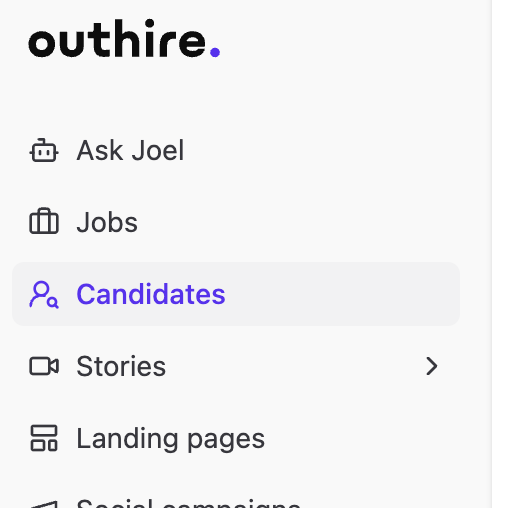
Navigate to Outhire Dashboard
Start by opening your Outhire Dashboard where you manage all your candidates and workflows.
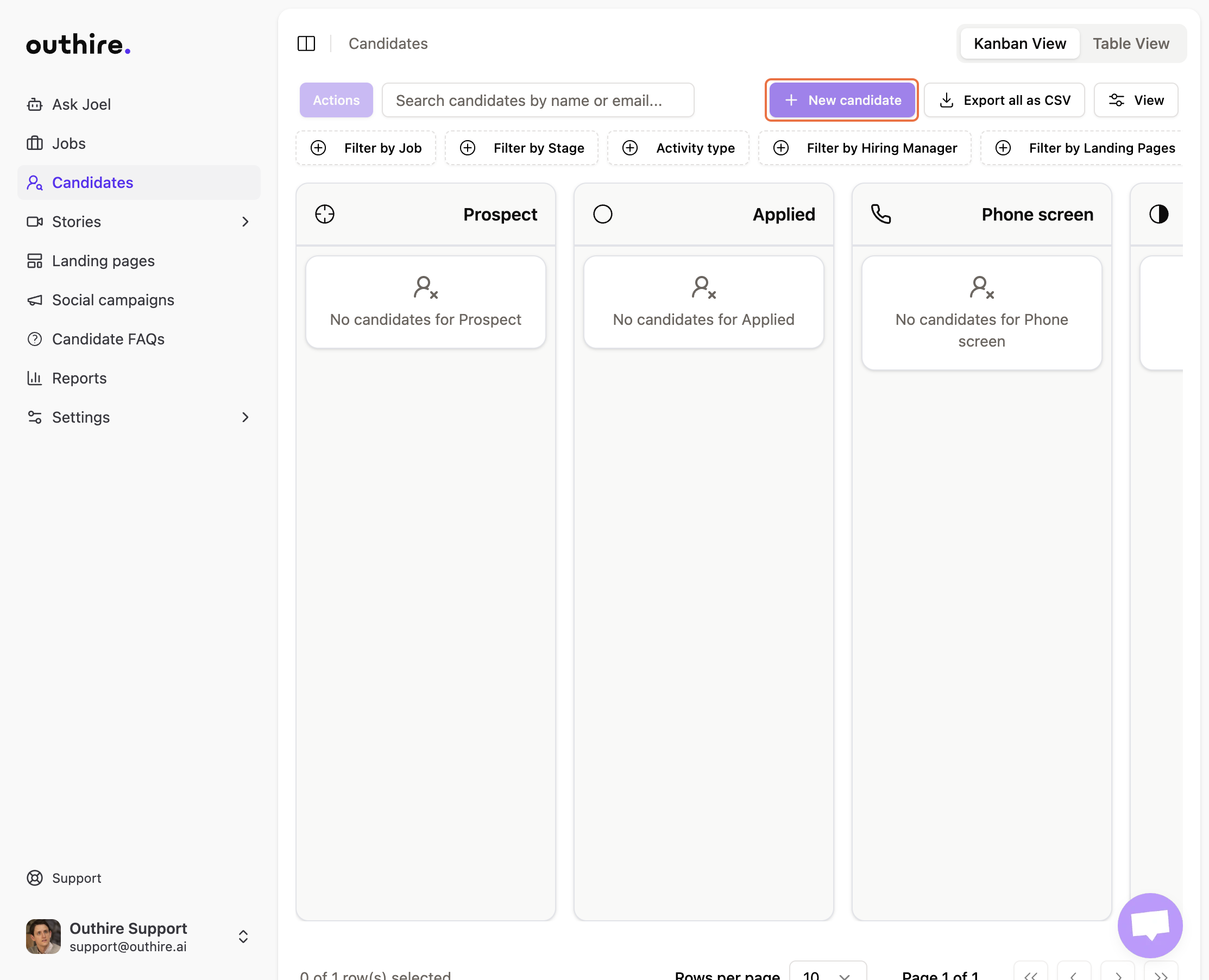
Click on New Candidate
Click the "New candidate" button to start adding a new candidate to your system.
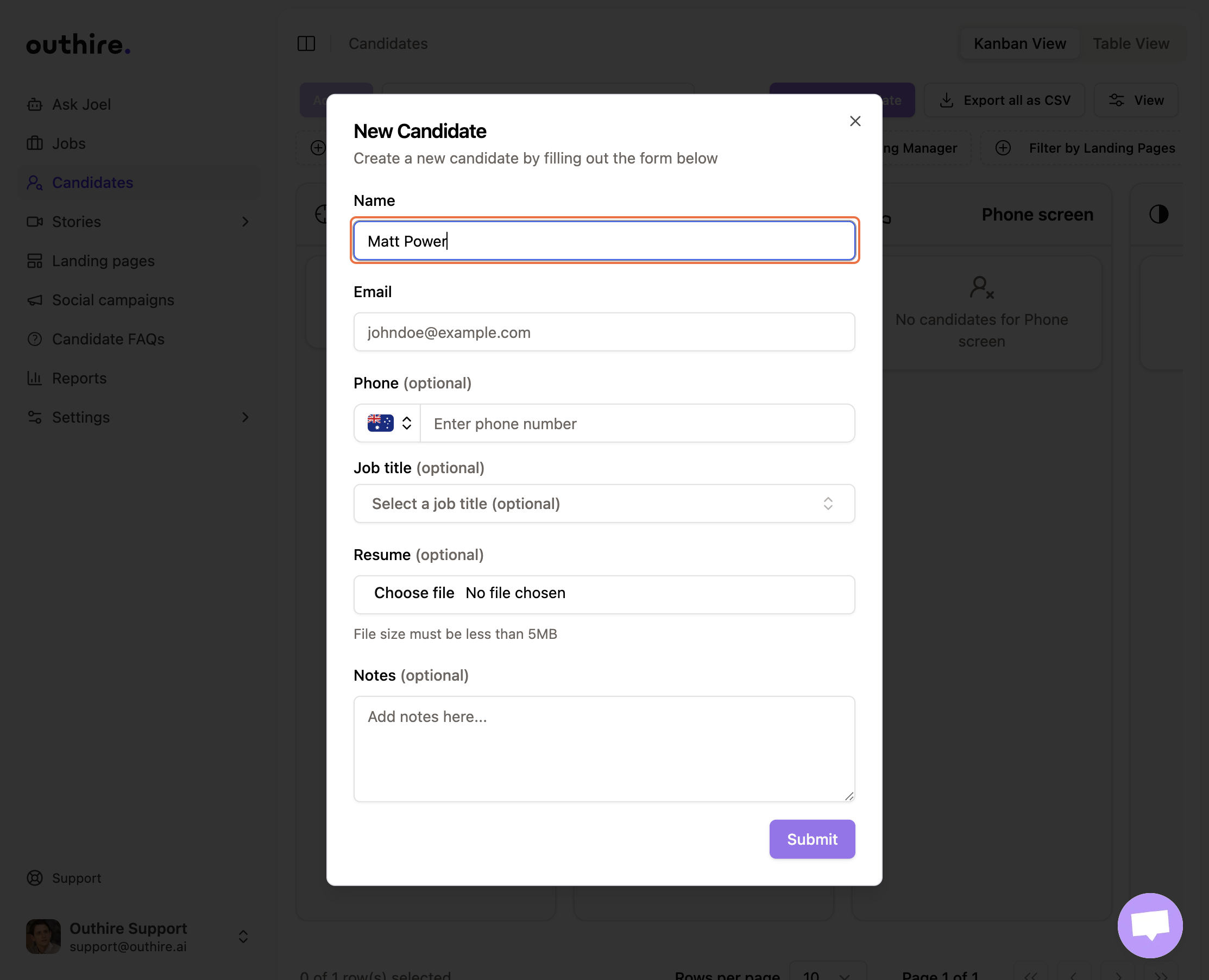
Enter Candidate Name
Type the candidate's full name in the name field (e.g., "Matt Power").
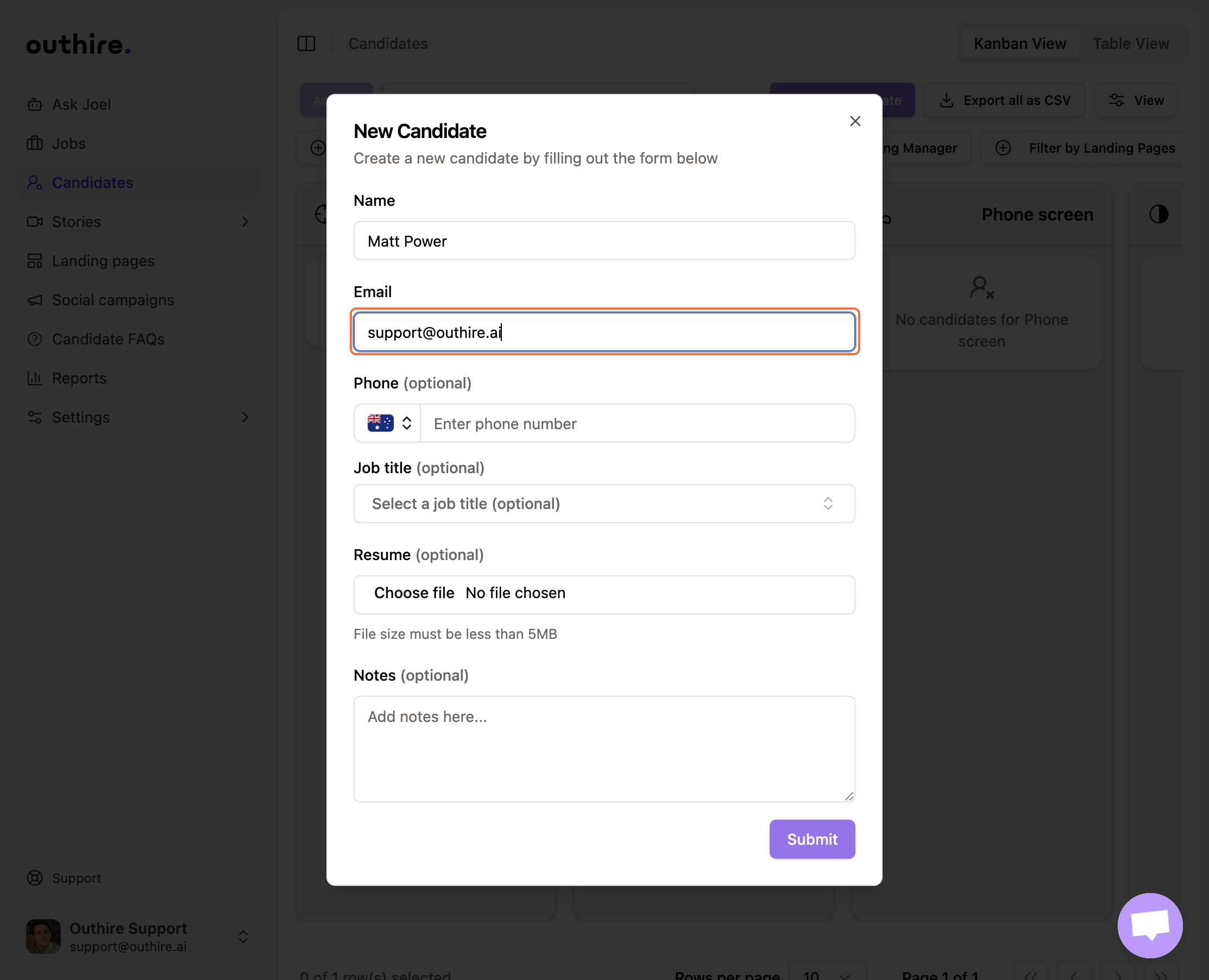
Enter Email Address
Type the candidate's email address in the email field (e.g., "support@outhire.ai").
Enter Phone Number
Type the candidate's phone number in the phone field (e.g., "0400 123 123").
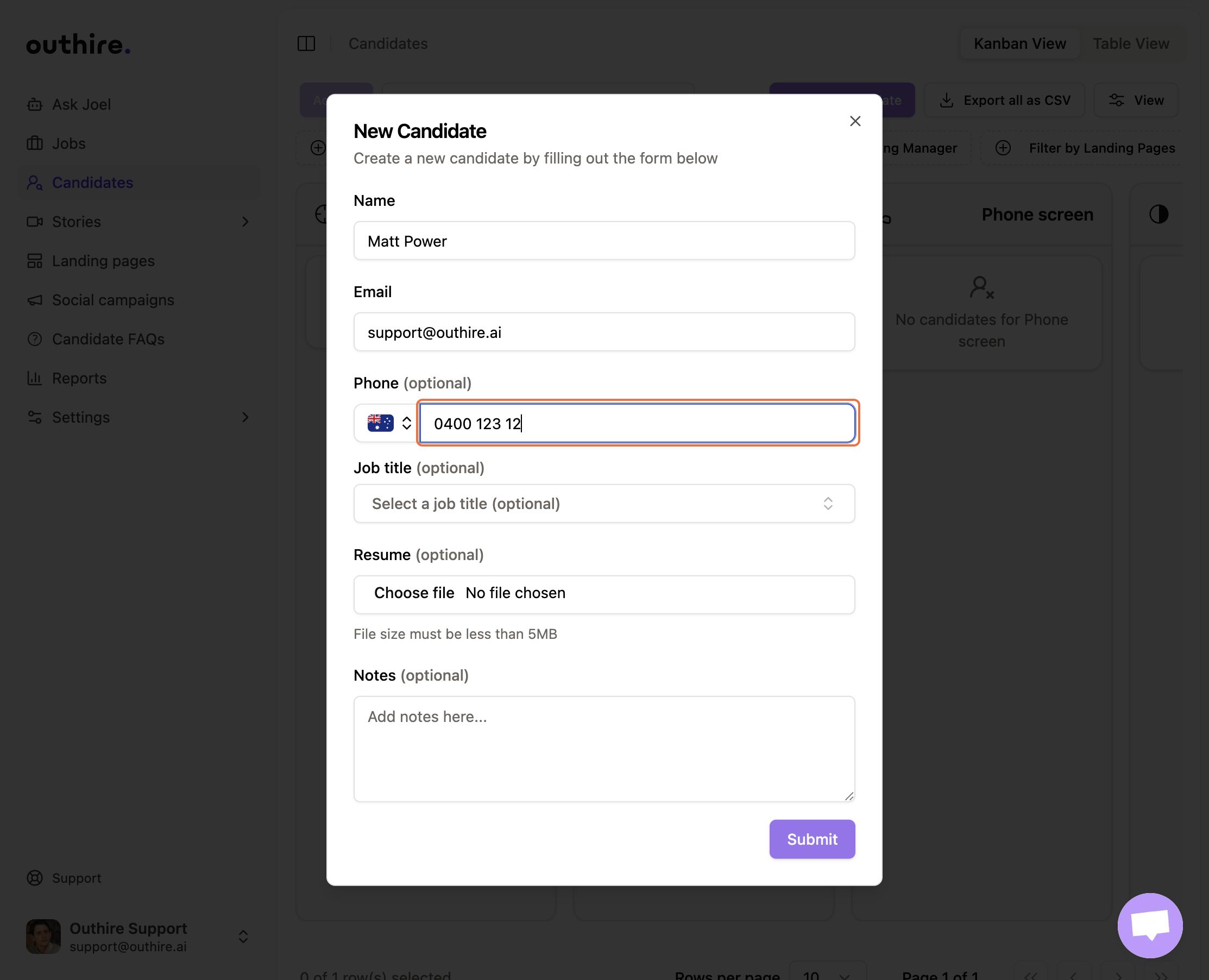
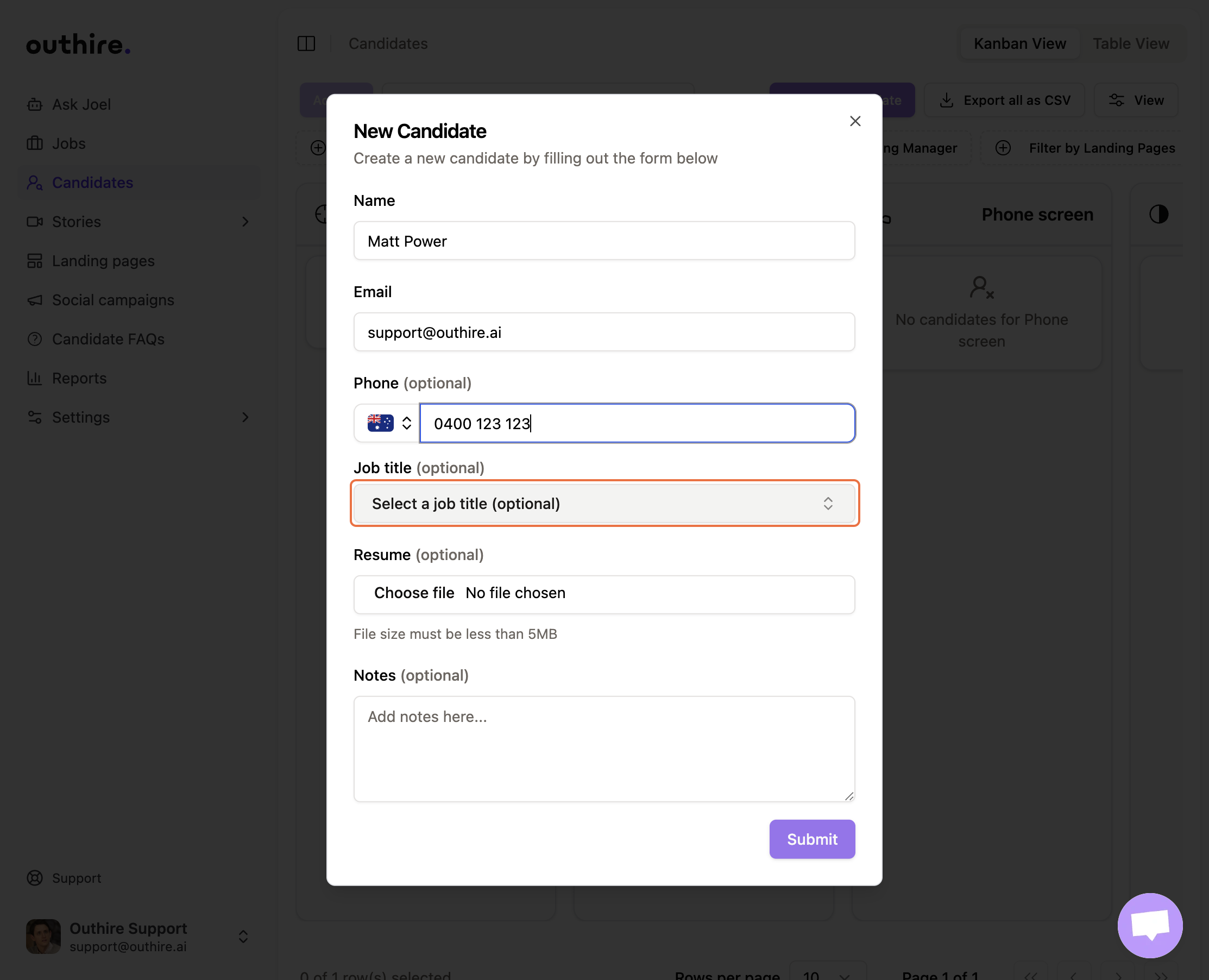
Select Job Title
Click on the Job Title field and choose the appropriate role from the dropdown (e.g., "Chef (ID: 2655)").
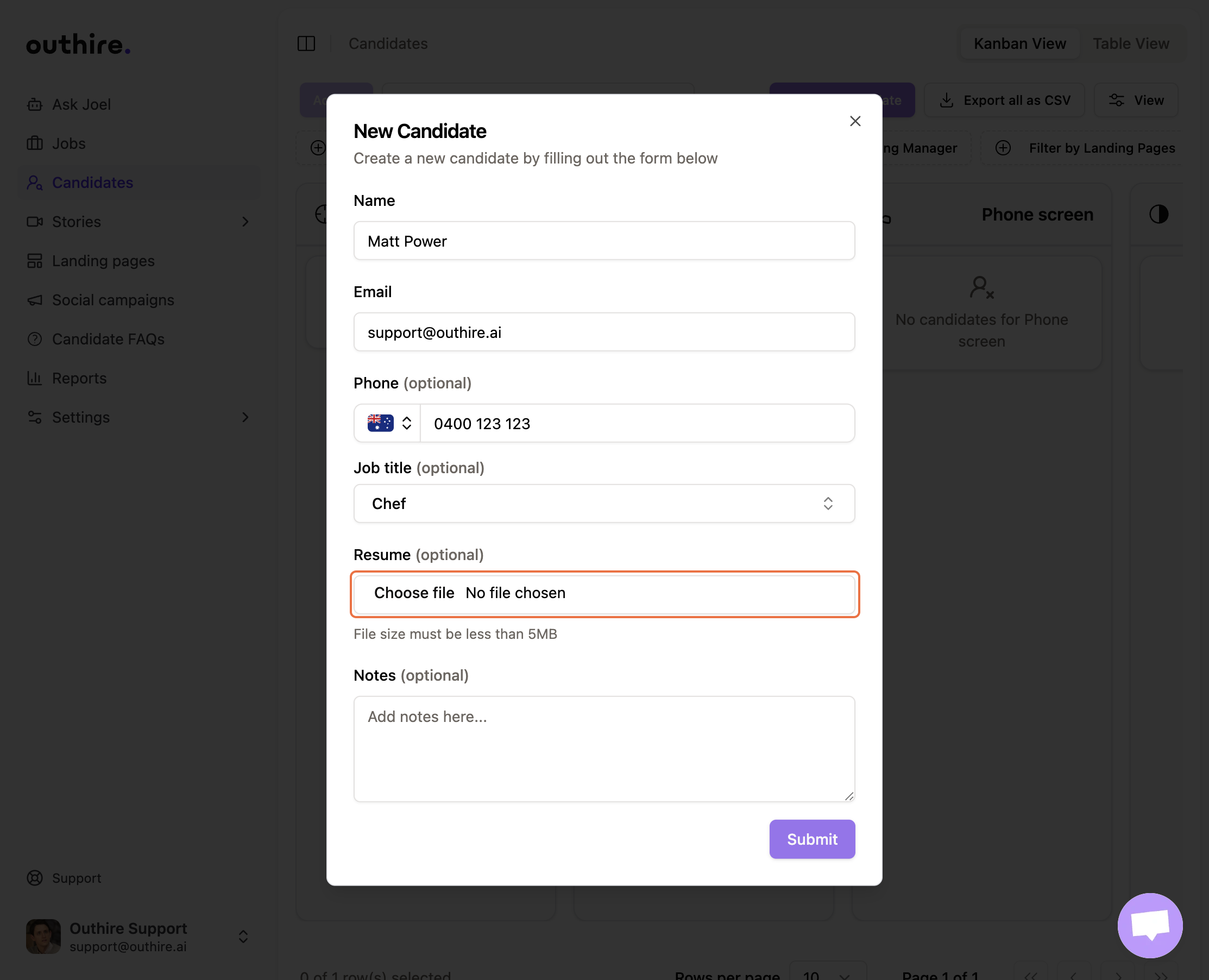
Add Resume (Optional)
Click on the Resume upload section to attach the candidate's resume if available.
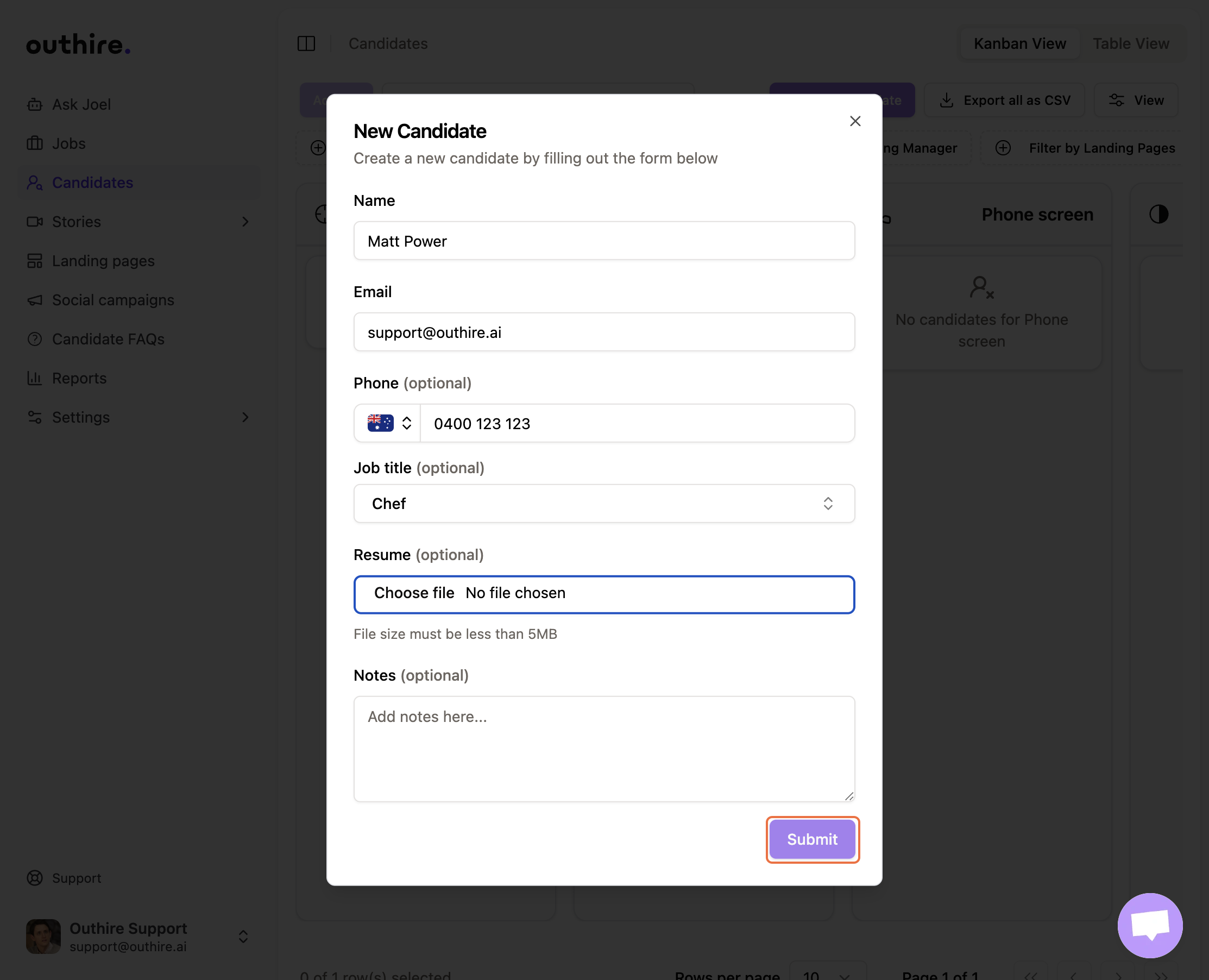
Click Submit
Click the "Submit" button to save the candidate information and add them to your system.
Move Candidate
Use the drag button to move the candidate or click "Move candidate" to assign them to a different pipeline stage.
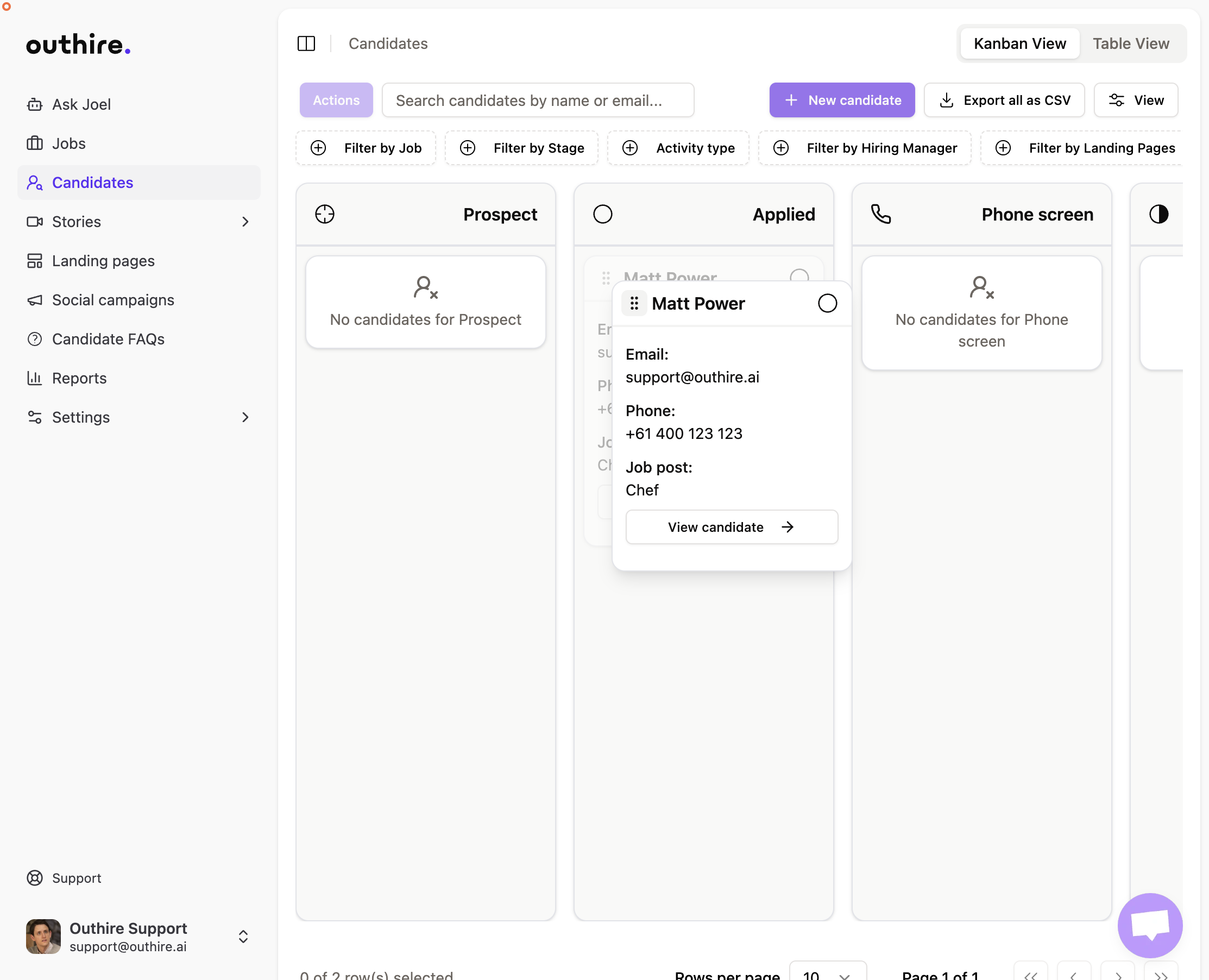
Change Candidate Stage
Click on the switch and select "Change Stage" to update the candidate's status in your recruitment pipeline.
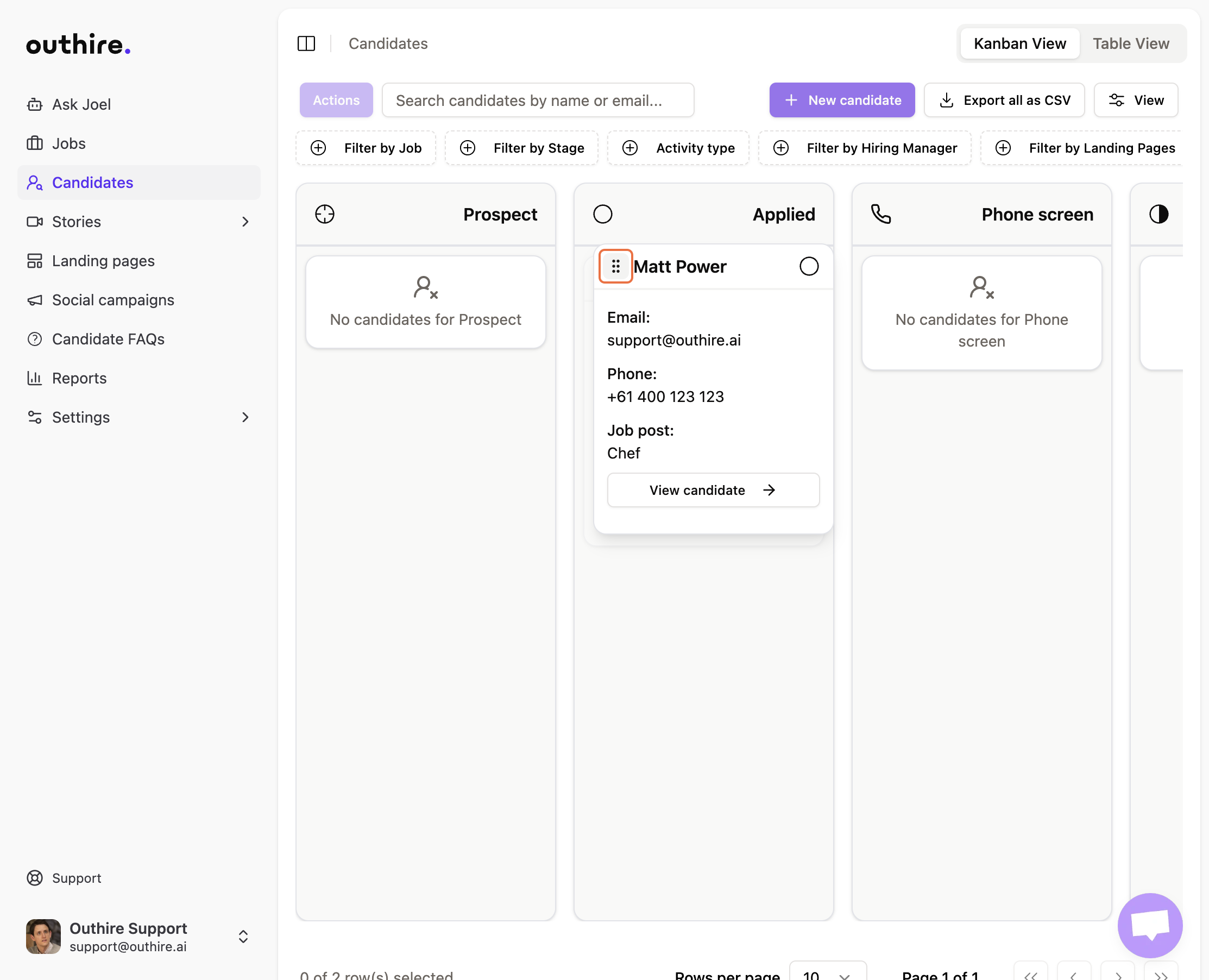
Candidate added successfully!
Your candidate has been added to the system and is now ready for screening. They will appear in your pipeline and can be moved through different stages as they progress through your recruitment process.
Best Practices
Verify contact information
Always double-check the candidate's email and phone number to ensure they can be reached for screening calls and communications.
Assign the correct job title
Make sure to select the appropriate job title that matches the role they're applying for to ensure proper screening questions.
Upload resumes when available
Attaching a resume helps provide additional context and allows for better candidate evaluation during the screening process.
Use pipeline stages effectively
Keep your pipeline organized by moving candidates to appropriate stages as they progress through your recruitment workflow.
Need help?
Our team is here to assist you with candidate management and recruitment workflows.