Invite Admin in Outhire Dashboard
Add team members as administrators to your Outhire Dashboard. Grant full access to manage workflows, settings, and team members.
Step-by-Step Instructions
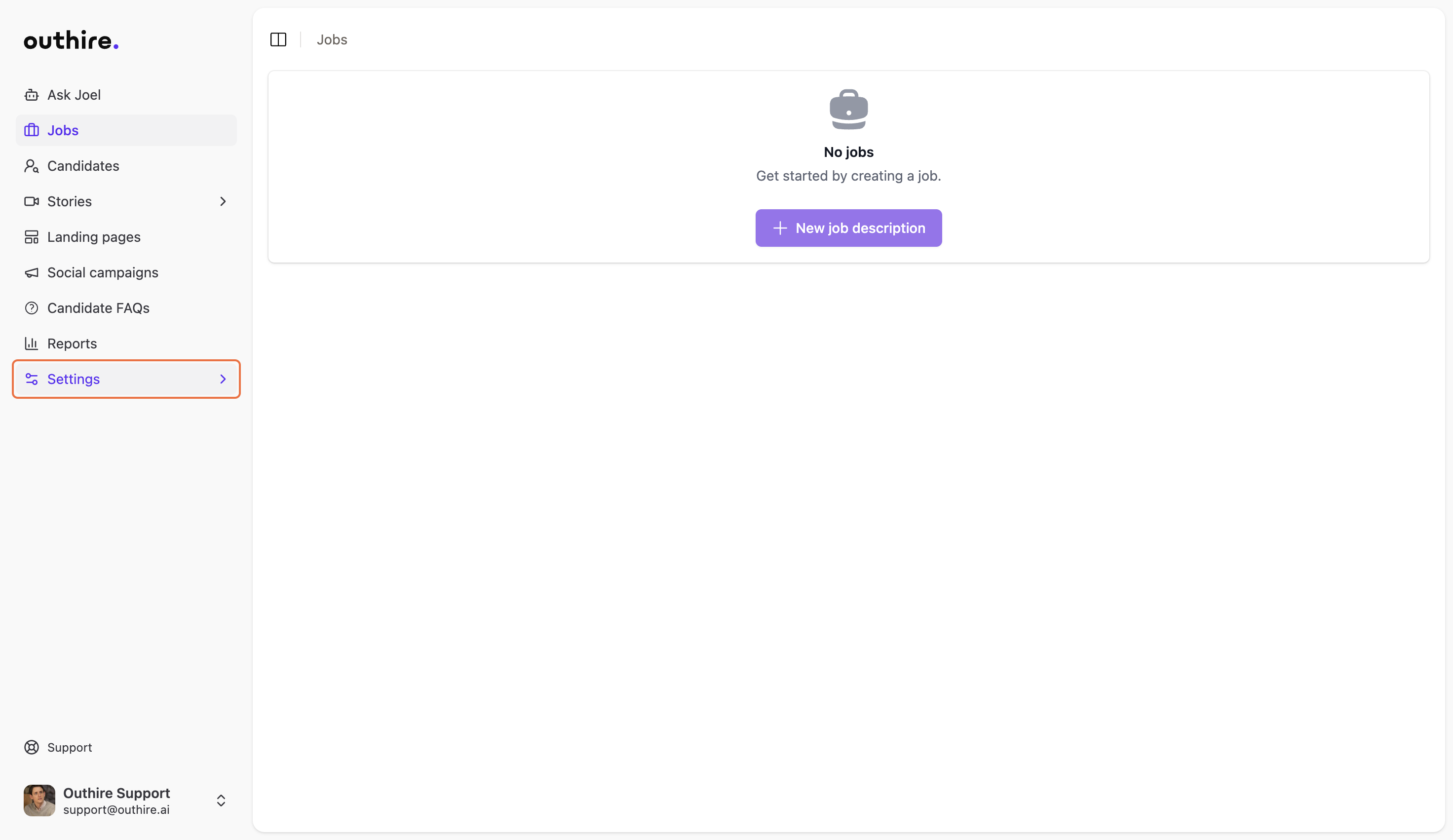
Click on Settings
Navigate to the Settings section from the left sidebar of your Outhire Dashboard.
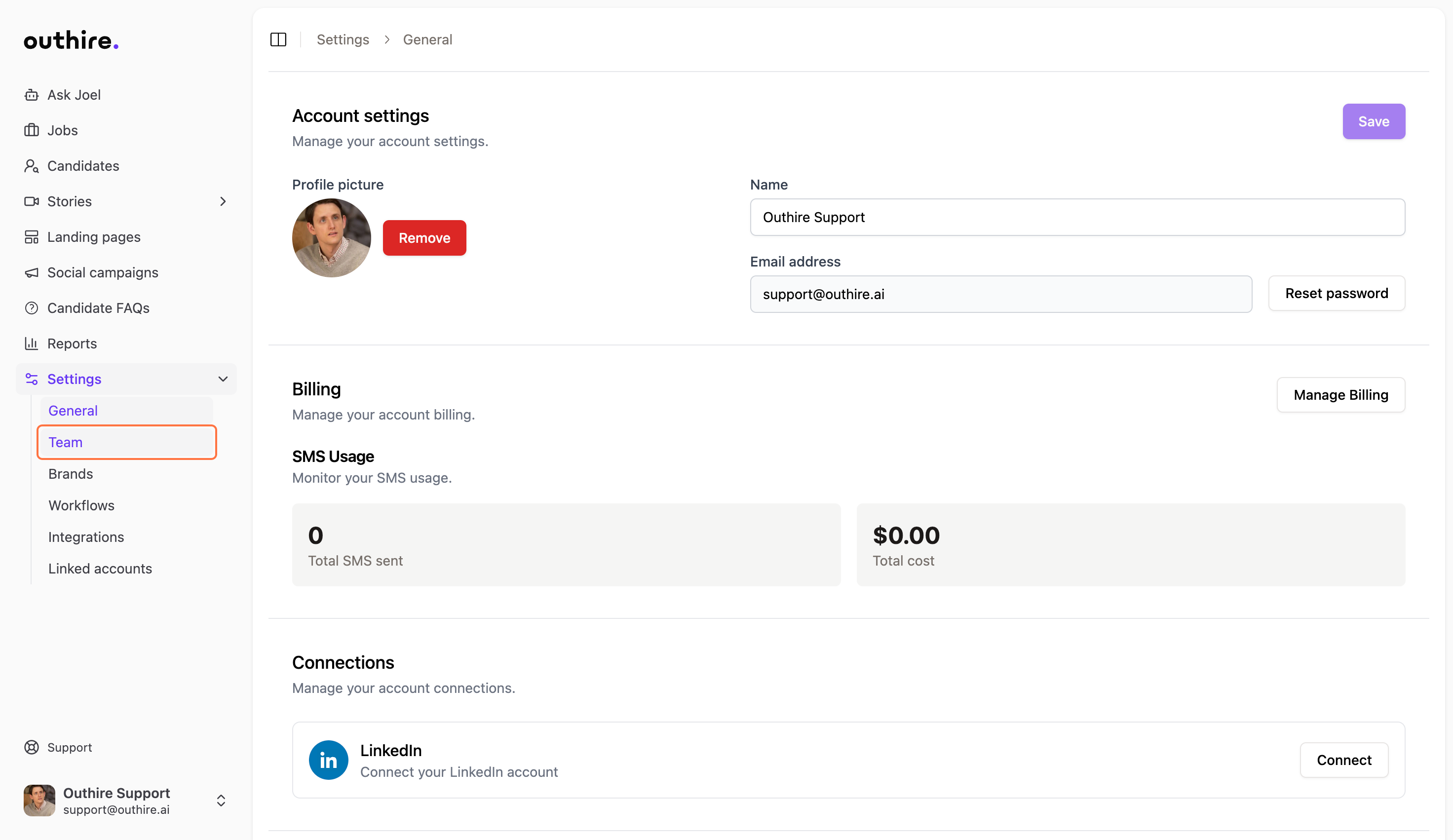
Click on Team
In the Settings menu, select the Team option to access team member management.
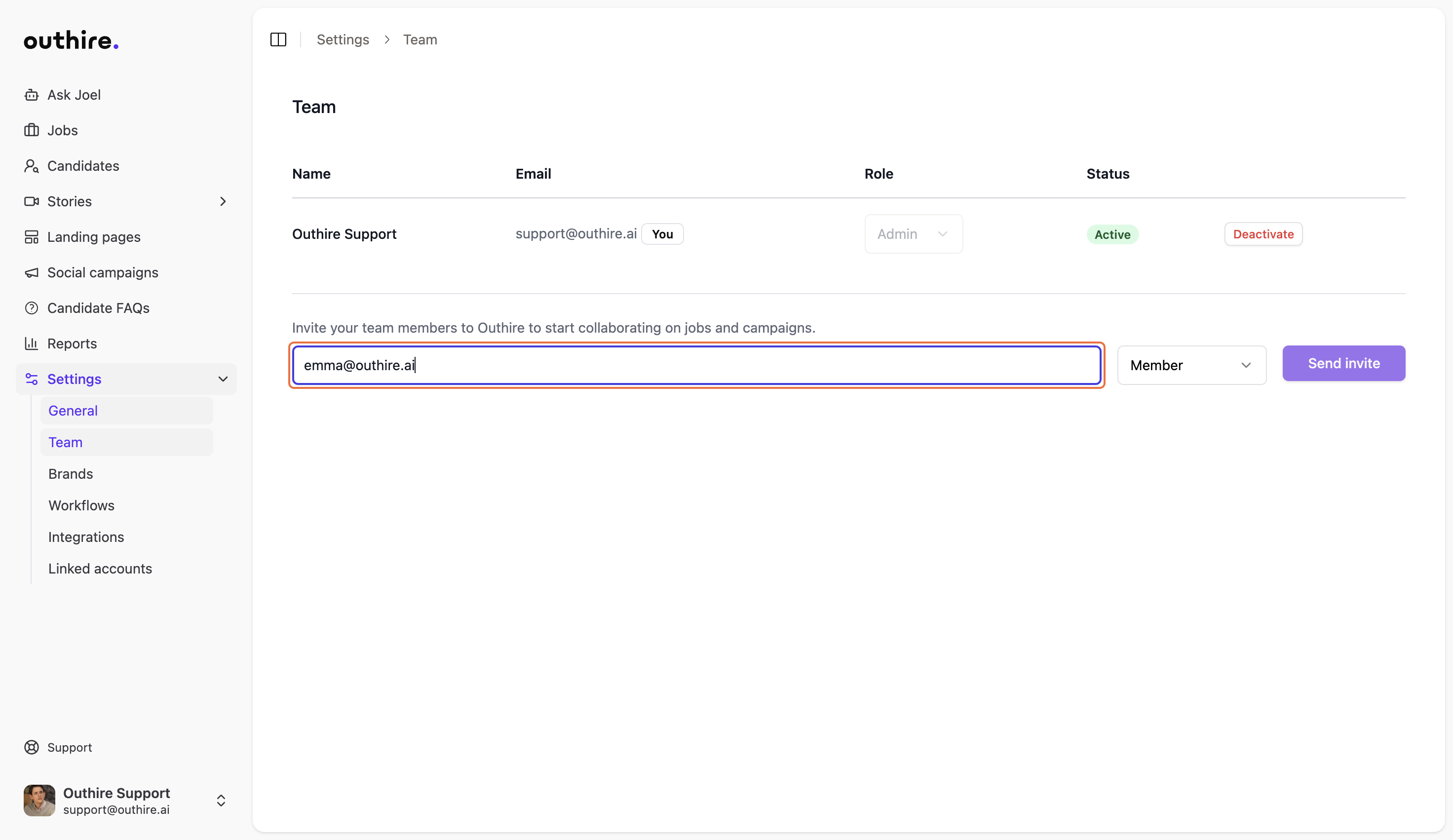
Type the email address
Enter the email address of the team member you want to invite (e.g., emma@outhire.ai) in the email input field.
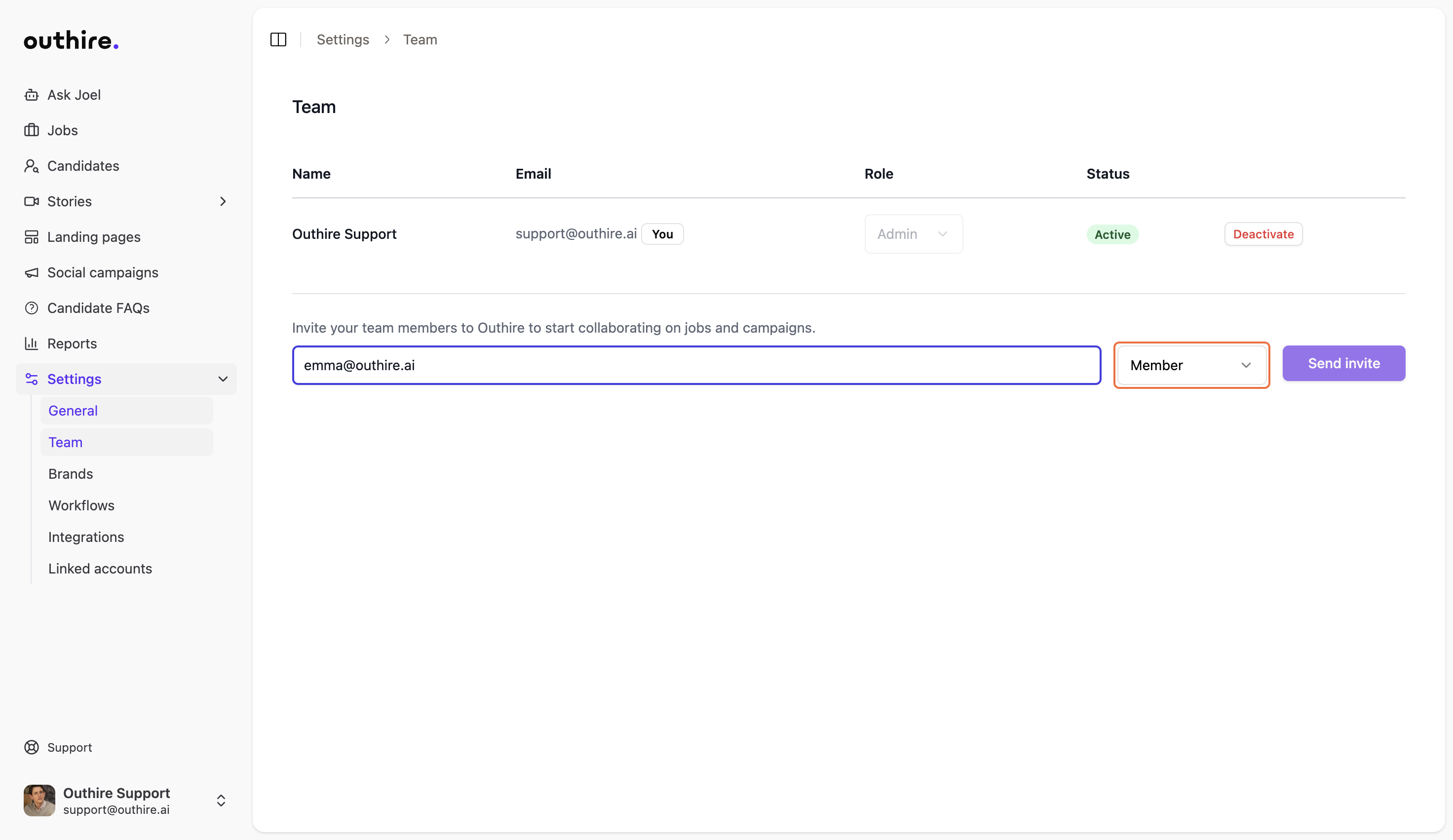
Click on member
After typing the email, click on the member role option to select the appropriate role.
Click on Admin
Select "Admin" from the member role dropdown to grant full administrative access.
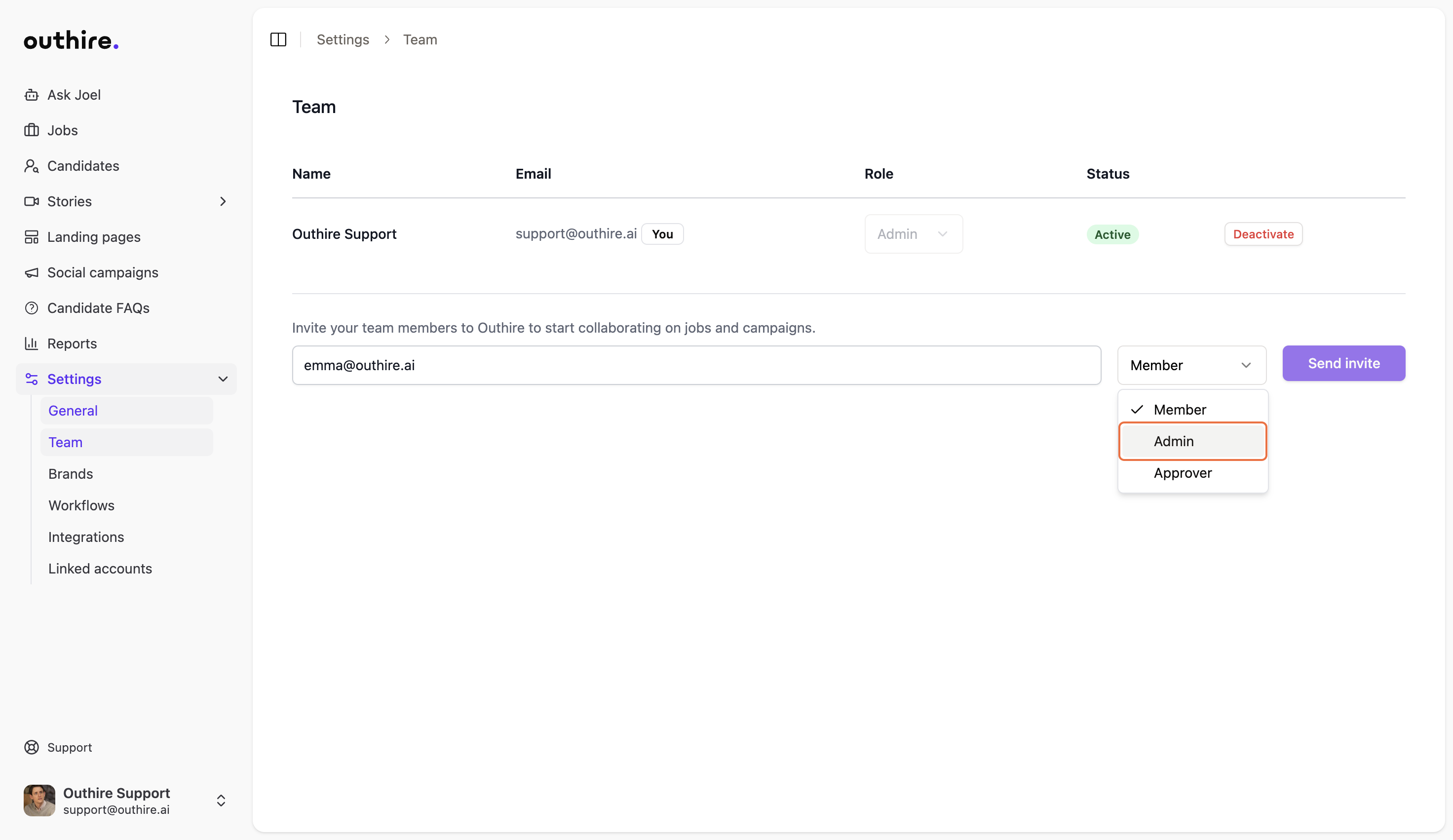
Click on Send invite
Click the "Send invite" button to send the invitation email to the new admin.
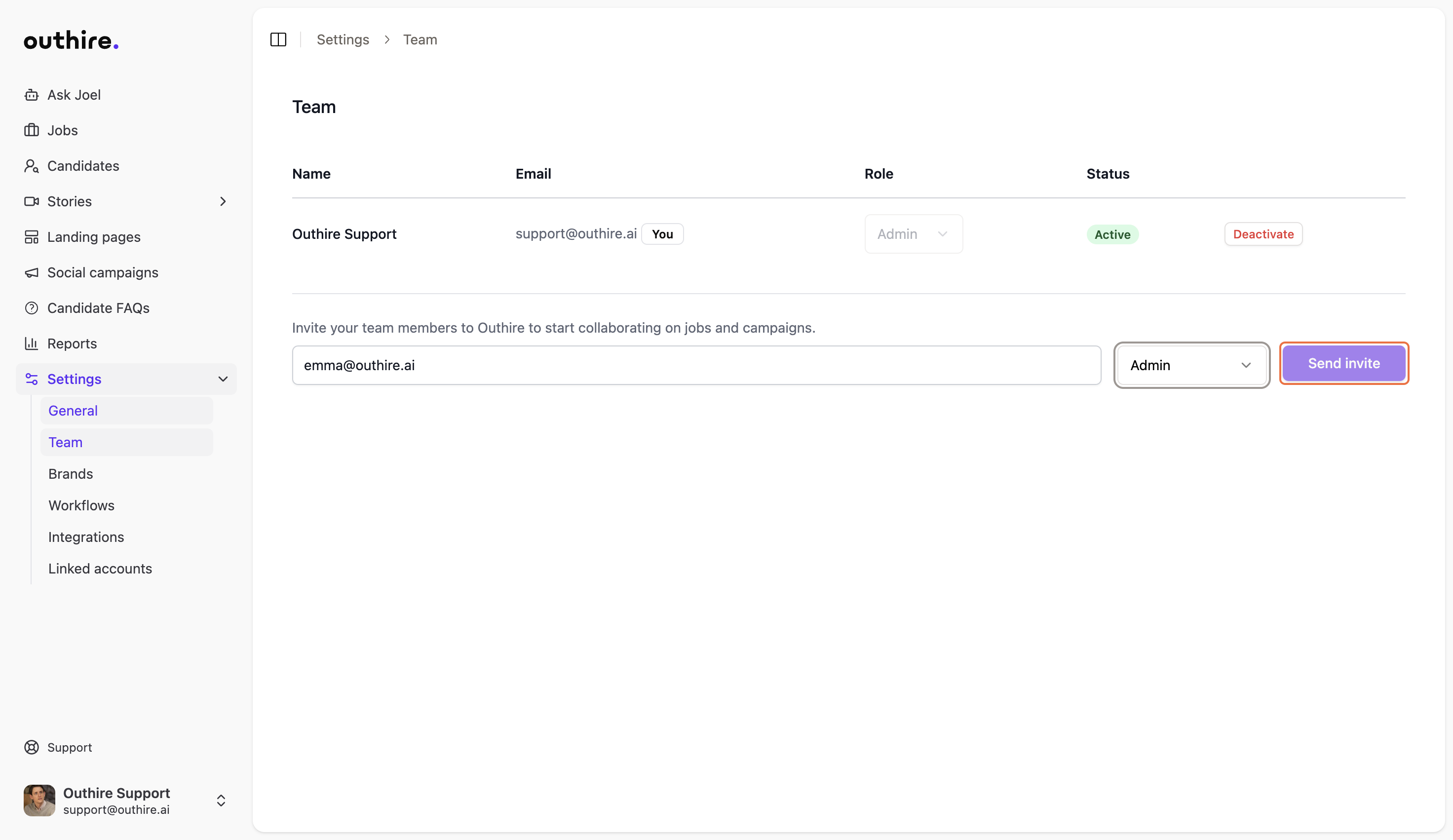
Invitation sent!
The admin invitation has been sent via email. The new team member will receive an invitation link to join your Outhire workspace with full administrative privileges.
Best Practices
Use role-based access control
Only grant admin access to team members who need full system privileges. Consider using member or viewer roles for others.
Verify email addresses
Double-check the email address before sending invitations to ensure they reach the right person.
Monitor team activity
Regularly review your team members and their access levels to maintain security and proper access control.
Need help?
Our team is here to assist you with team management and access control.