Adding a Talent Release Agreement
Configure talent release agreements in your Outhire workflows to ensure legal compliance when recording candidate screening calls. Follow these 5 simple steps to get started.
Step-by-Step Instructions
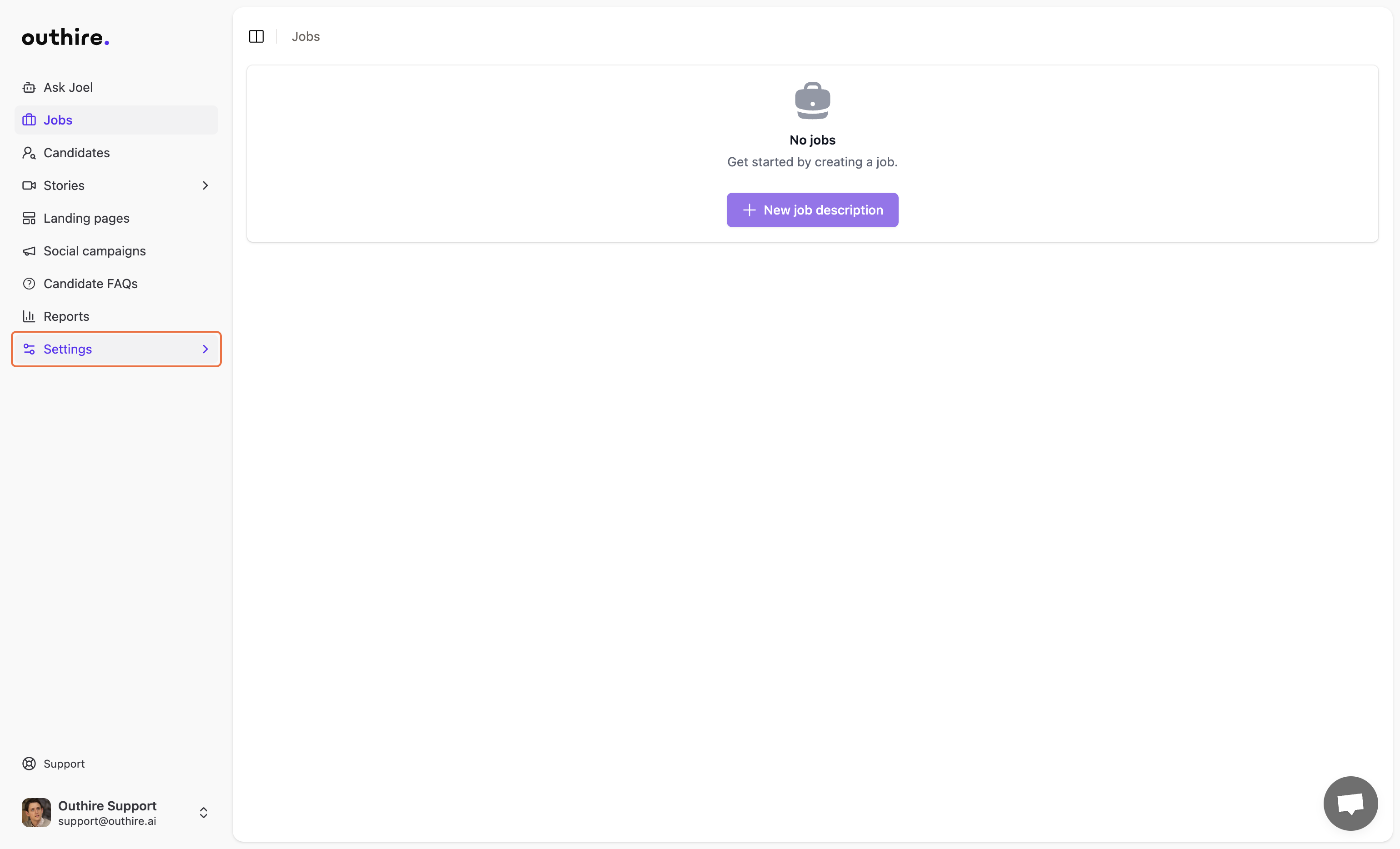
Click on Settings
Navigate to the Settings section from your Outhire Dashboard. Look for the settings icon in the navigation menu.
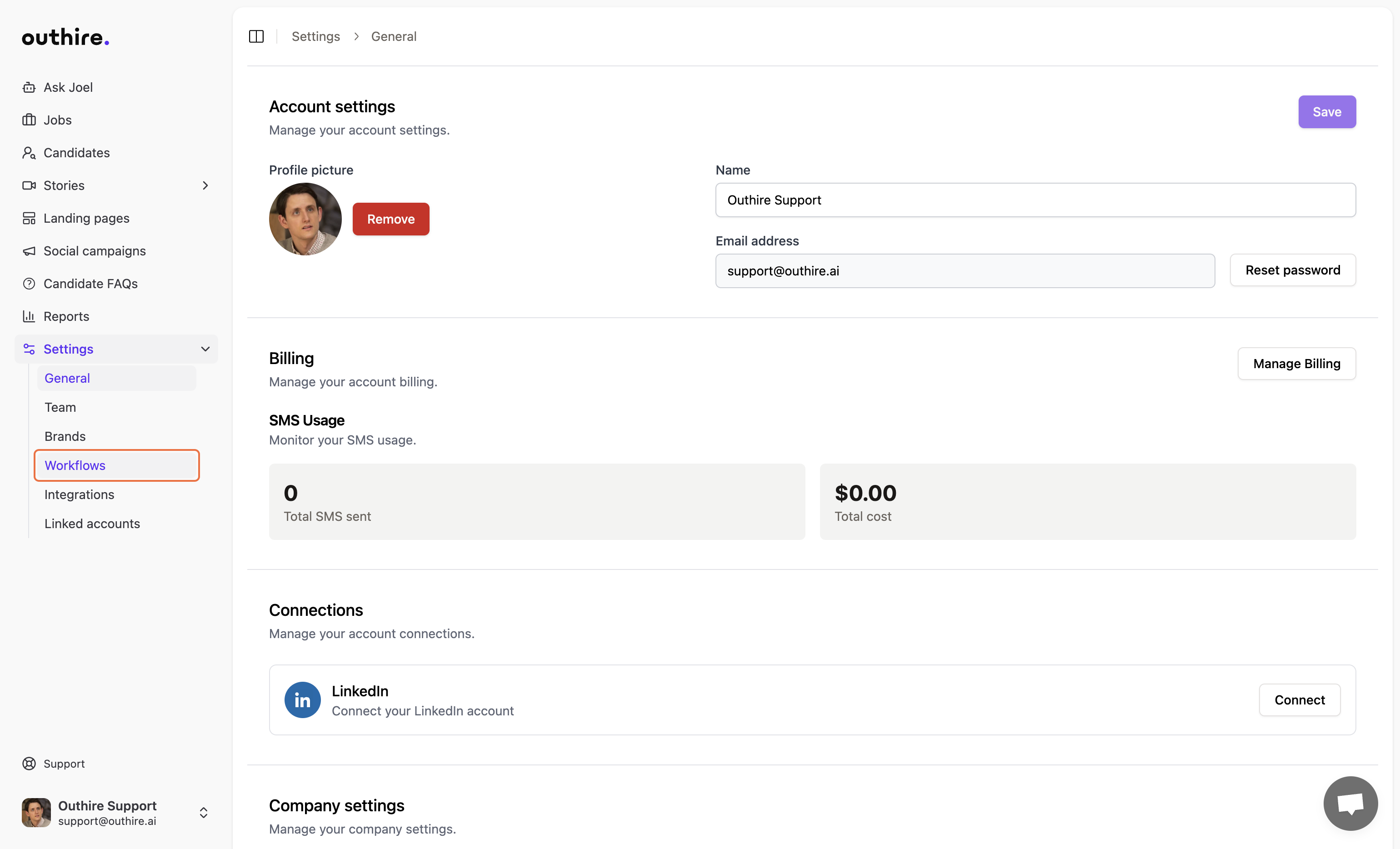
Click on Workflows
In the Settings menu, select the Workflows option to access workflow configuration.
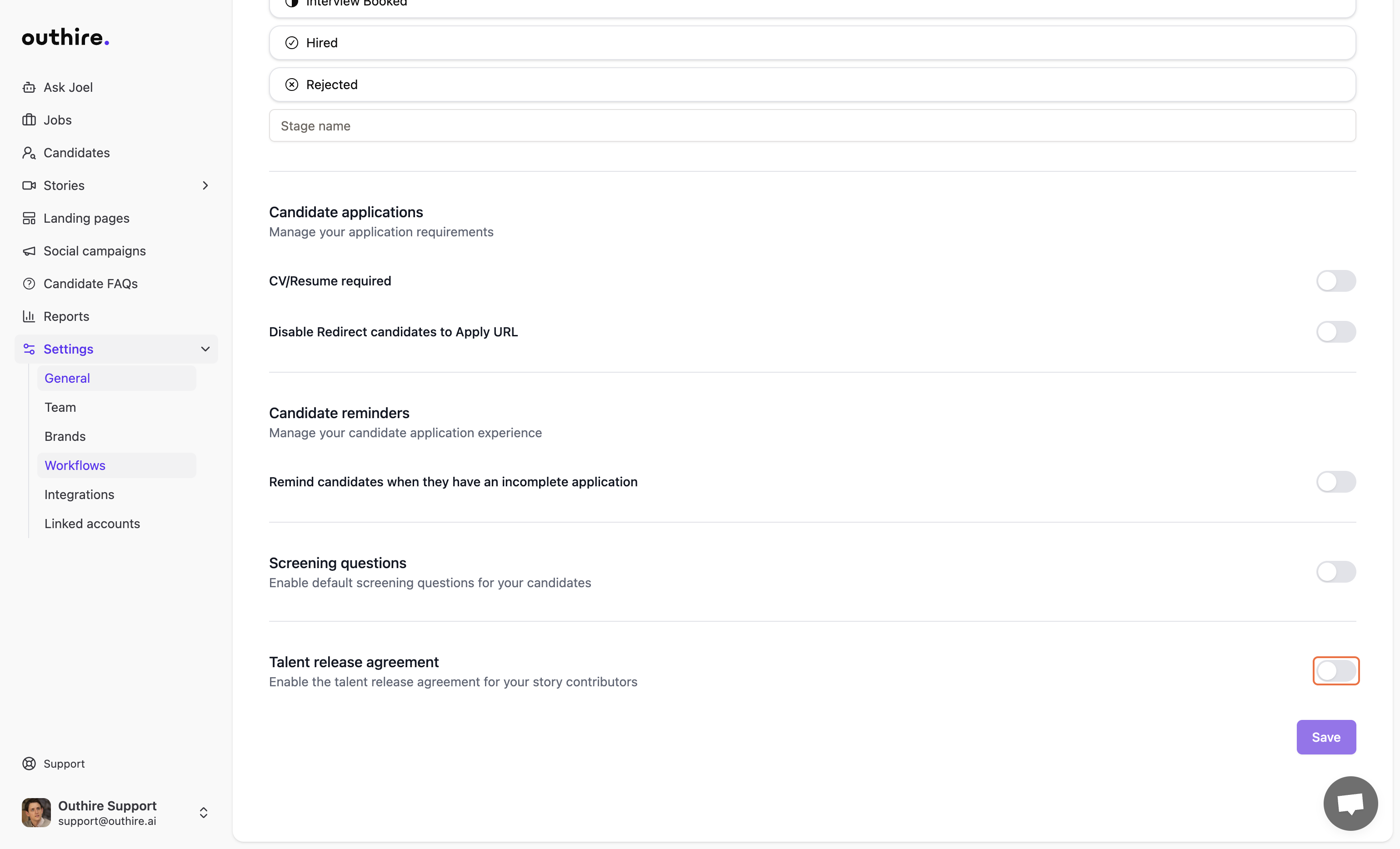
Click on Talent Release Agreement
Find and open the Talent Release Agreement section within the workflows settings.
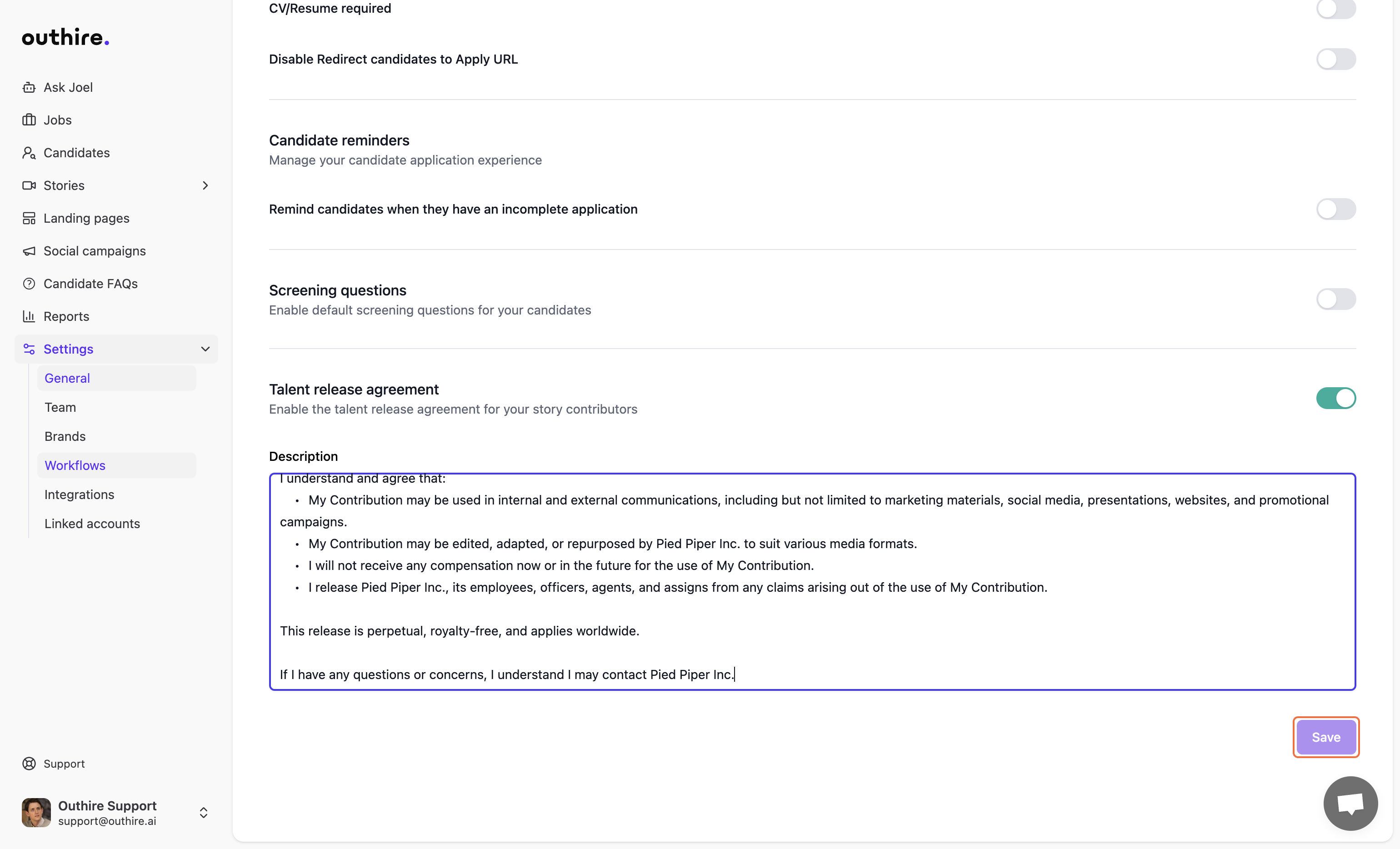
Add Your Agreement
Paste or type your talent release agreement text into the provided text area. This is the legal agreement candidates will review before their screening call.

Click on Save
Confirm and save your newly added talent release agreement. The agreement will now be presented to candidates during the screening process.
You're all set!
Your talent release agreement is now active. Candidates will be presented with the agreement before their screening call begins. They must accept the terms before proceeding with the interview.
Best Practices
Keep it clear and concise
Write your agreement in plain language that candidates can easily understand. Avoid overly complex legal jargon.
Include all necessary permissions
Ensure your agreement covers recording, storage, and use of the candidate's voice and responses for evaluation purposes.
Review with legal counsel
Have your legal team review the agreement to ensure compliance with local recording consent laws and data privacy regulations.
Need help?
Our team is here to assist you with configuring your workflows and legal agreements.